EDI Dashboard
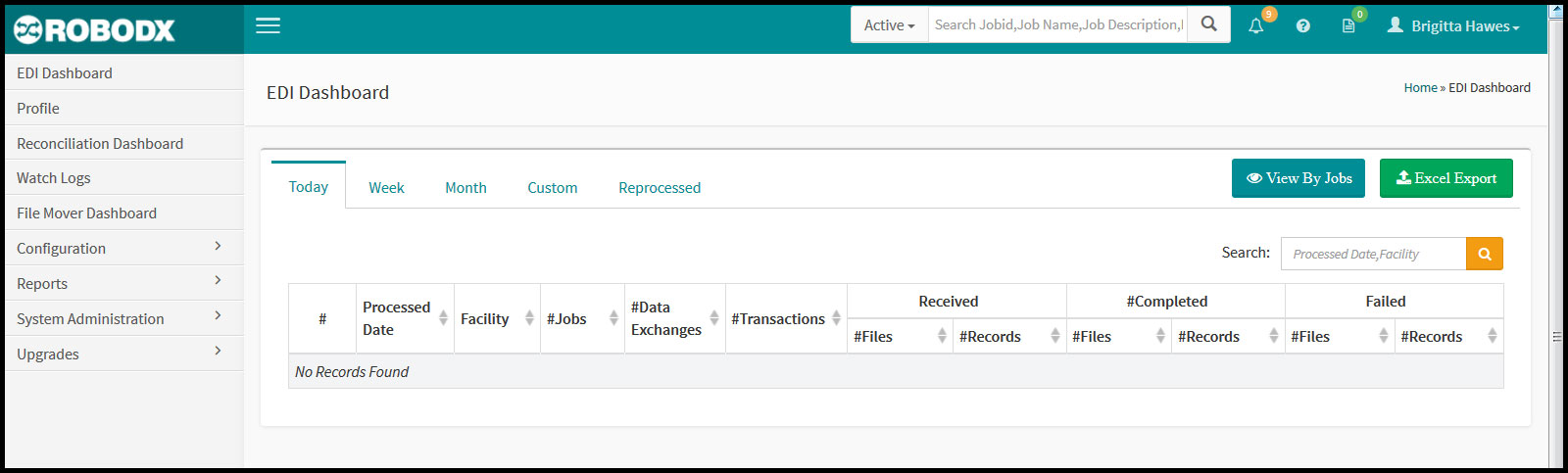
The EDI Dashboard screen is the default landing page after the user logs in (Fig. 1). Job information is viewable by:
- Current Day: Displays the current day's activities.
- Week: Displays the current week’s activities.
- Monthly: Displays the current month’s activities.
- Custom: Displays information based on the From and To date selection.
- Reprocessed: If a job is reprocessed, then the reprocessed details are displayed.
[Fig. 1]
Table Columnar Definitions
- Processed Date: Date job was processed.
- Facility: Name of the internal agency (i.e., the name of your specific company) that generated the job.
- #Jobs: Refers to the number of jobs that are included in a batch.
- #Data Exchanges: Refers to the data-transfer type. Outside of searches, the data-transfer types have no functionality built around them; however a table column can show how many different data-transfer-types a job had (e.g., EDI, Vendor, etc. Data-transfer types are selected from within the Job Setup screen via the Data Exchange field.
- #Transactions: Refers to the transaction type of a job, for instance: New Accounts, Reconcilliation, Cancellation, etc. Transaction types are selected from within the Job Setup screen via the Transaction Type field.
- #Received: Files: This is the number of files or APIs that have been received by RoboDX™.
- #Received: Records: Within each file or API, there are multiple items, sometimes appearing as separate rows in a table although the records could be separated in a number of ways.
- #Completed: Files: Refers to how many of the files received have been successfully processed.
- #Completed: Records: Refers to how many of the records received have been successfully processed.
- #Failed: Files: Refers to how many of the files received have failed to process successfully.
- #Failed: Records: Refers to how many of the records received have failed to process successfully.
Drilldown
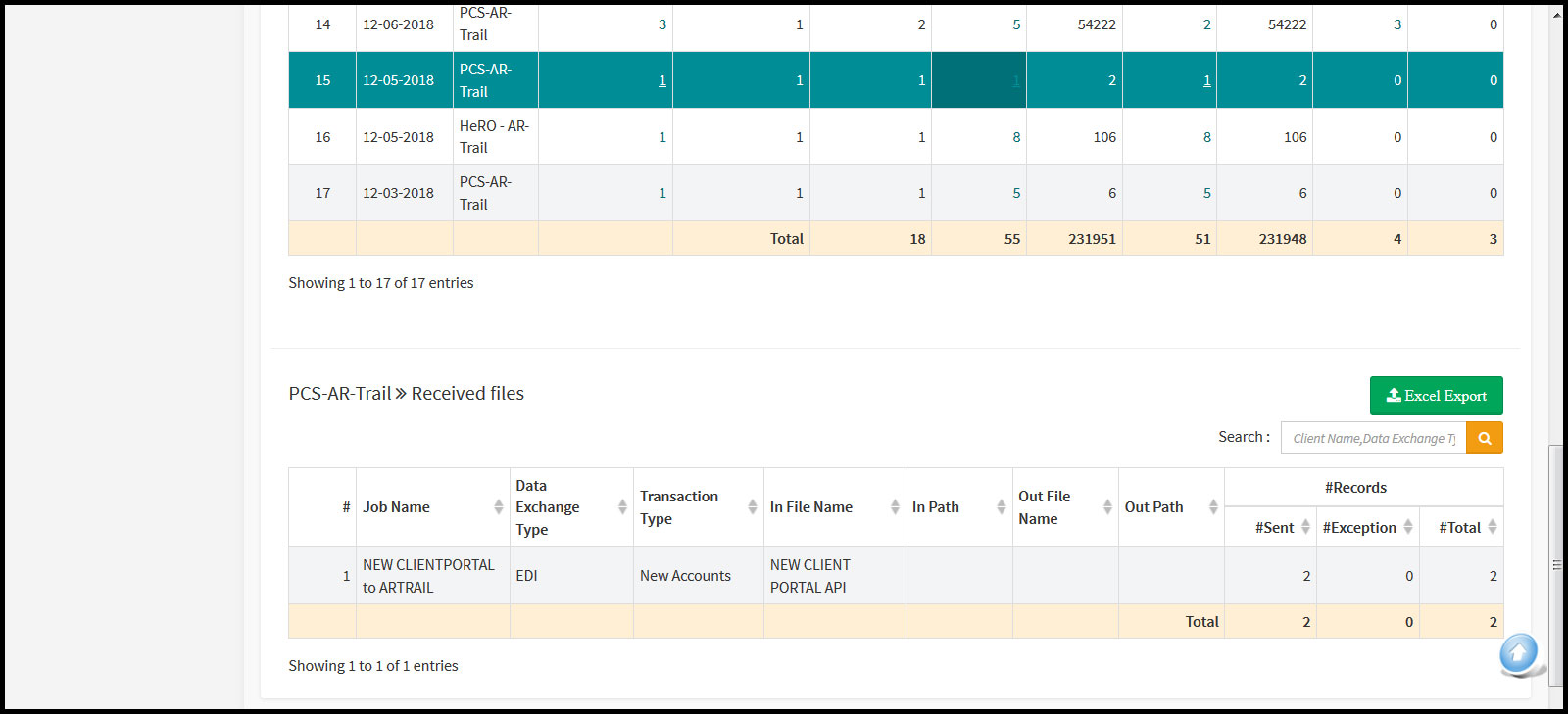
For a detailed view of any file, click on the blue number within the #Jobs Received: #Files, Completed: #Files or Saved: #Files.
NOTE: Results will display at the bottom of the page below the table (Fig. 2).
[Fig. 2]
Search Functionality
- Click within the search box field located within the upper-right corner of the table.
- Enter in your search parameter. As you begin to type in your parameter, the table begins to sort. Search parameters include:
- Processed Date
- Facility Name
Export Table Results
You may export table results to a spreadsheet format.
- Click on the Excel Export button located in the upper-left of the table.
- Click the Open with radio-button option to Open the exported file and select an appropriate program to open it, or click within the Save File radio-button option to save the file for later viewing.
NOTE: Depending on which report type you chose to open, this report requires a program on your computer such as:
- Adobe Reader or Acrobat that can read .pdf files, or
- Open Office or Microsft Excel to view an .xls file.
Alternate View
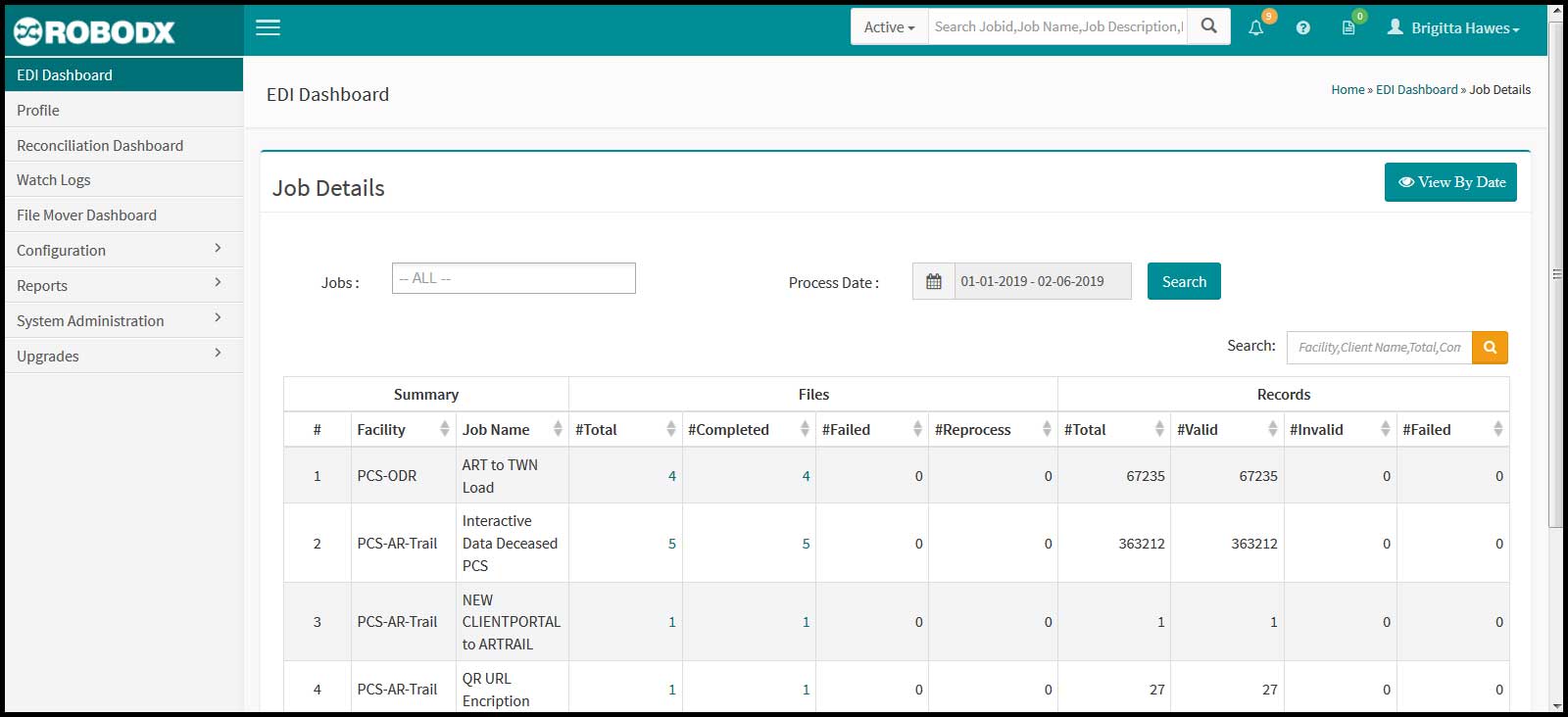
A user may also view a Job’s details by clicking on the View By Jobs button (Fig. 3).
[Fig. 3]
- Click on the View by Jobs button located in the upper-right corner of the table.
- Click within the Jobs input box. A list of jobs will appear.
- Select one or more jobs.
- Click within the Process Date field, and enter in the date range.
- Click on the Search button.
- The Job details will display the following information:
- Summary:
- Facility: Displays the number of facilities included in the processed job.
- Client Name: Displays the client name for the processed job.
- Files: This tab displays the Total, Completed, Failed and Reprocessed jobs.
- Total: Displays the total number of files processed.
- Completed: Displays the total number of files that are incompleted.
- Failed: Displays the total number of files which are failed.
- Reprocess: If the user reprocessed any files for the job, then the number of reprocessed files is displayed.
- Records: This tab displays the Total, Valid, Invalid and Failed job details.
- Total: Displays the total number of records.
- Valid: Displays the list of vaild records.
- Invalid: Displays the list of invalid records.
- Failed: Displays the list of failed records.
- Summary: