System Administration → Data Exchange Type
Data Exchange Type
Data exchange is the process of taking structured data from a source schema and transforming it under a target schema, so that the target data is an accurate representation of the source data. Various data structures are available such as EDI (Electronic Data Interchange), HL7 (Health Level-7), and X12.
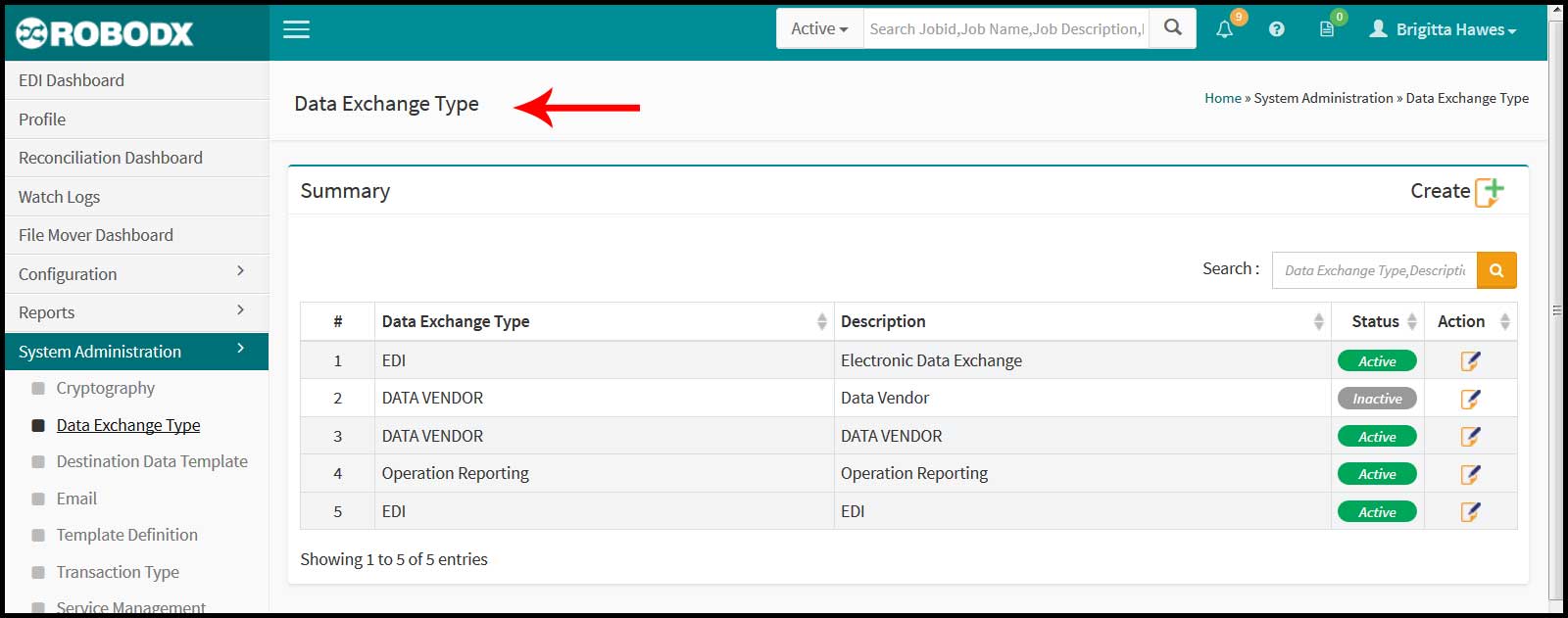
In the *Data Exchange screen (Fig. 1), we are just creating data-exchange designations, providing a brief description and the effective to and from dates. These designations are used within select-input options throughout the RoboDX™ system for identification & clarification purposes only, and do not, in and of themselves, provide any functionality.
[Fig. 1]
Summary Table
Upon page load, the Data Exchange table (Fig. 1) displays the following information:
- Data Exchange Type: Identifies the name of the data structure.
- Description: Shows a description of the data structure.
- Status: Shows the current status of the availability of a data-exchange type.
- Active: Means the data-exchange type is available for use within the system.
- Inactive: Means the data-exchange type is not available for use within the system. Leave this field blank if there is no intended end date.
- Action: By selecting this option, the user can view and edit a data exchange's designation (i.e., name, descroption and status) details.
Search Summary Table
- Click within the search box located within the upper-right corner of the table.
- Type in your search parameter. Search parameters for this table are:
- Data Exchange Type, or
- Description
Search Table
- Click within the search box located within the upper-right corner of the table.
- Type in your search parameter. Search parameters for this table are:
- Data Exchange Type, and
- Description
Create a Data-Exchange Type
- Click on the Create icon located in the upper-right corner of the screen. The Data Exchange Type's Create screen appears.
- Fill-in the fields. Definitions are:
- Name: Enter in the name of the data-exchange type.
- Description:Enter a description for the data-exchange type.
- Effective From: Click within this field and from the popup calendar, select the date that this data-exchange type will be active as of.
- Effective To: Click within this field and from the popup calendar, select the date that this data-exchange type will no longer be active as of.
- Click on the Create button to save your changes. The newly created data-exchange element will now be included in the Summary table and depending on your Effective From date, available for us within the RoboDX™ system.
Edit a Data-Exchange Type
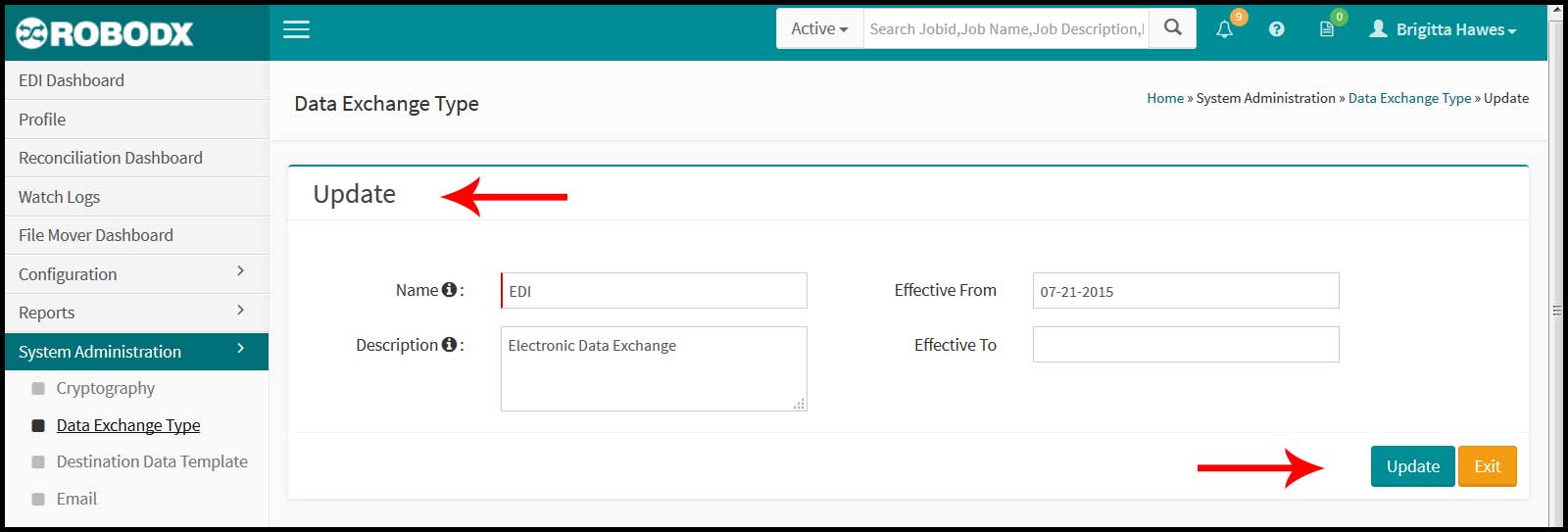
- Click on the edit icon in the table's Action column for the row you want to edit. The Data Exchange Type's Update screen appears (Fig. 2).
- Update the fields as needed.
- Click on the Update button to save your changes. Alternatively, you may click on the Exit button which will take you back to the main Data Exchange Type screen. All changes made since the last update will not be saved.
[Fig. 2]