System Administration → Cryptography
Cryptography
Cryptography is a technique for ensuring secured-data transfers between the source and destination. To transfer data, two techniques are used.
- Encryption: The process of translating plain text into cipher text (i.e., plain text is turned into something unreadable) – This is handled by the sender.
- Decryption: The process of converting (cipher) text back into plain text (i.e., cipher text is turned into something readable) This is handled by the receiver.
[Fig. 1]
Two Types of Encryption and Decryption:
-
Symmetric (AES): Requires a single key, which is known only to the authorized parties. The same key is used for encryption and decryption.
-
Asymmetric (PGP): Requires a pair of keys (public & private). The public key is used for encryption, and the private key is used for decryption. The private key is only available to the person the public key belongs to.
Cryptography Summary Table
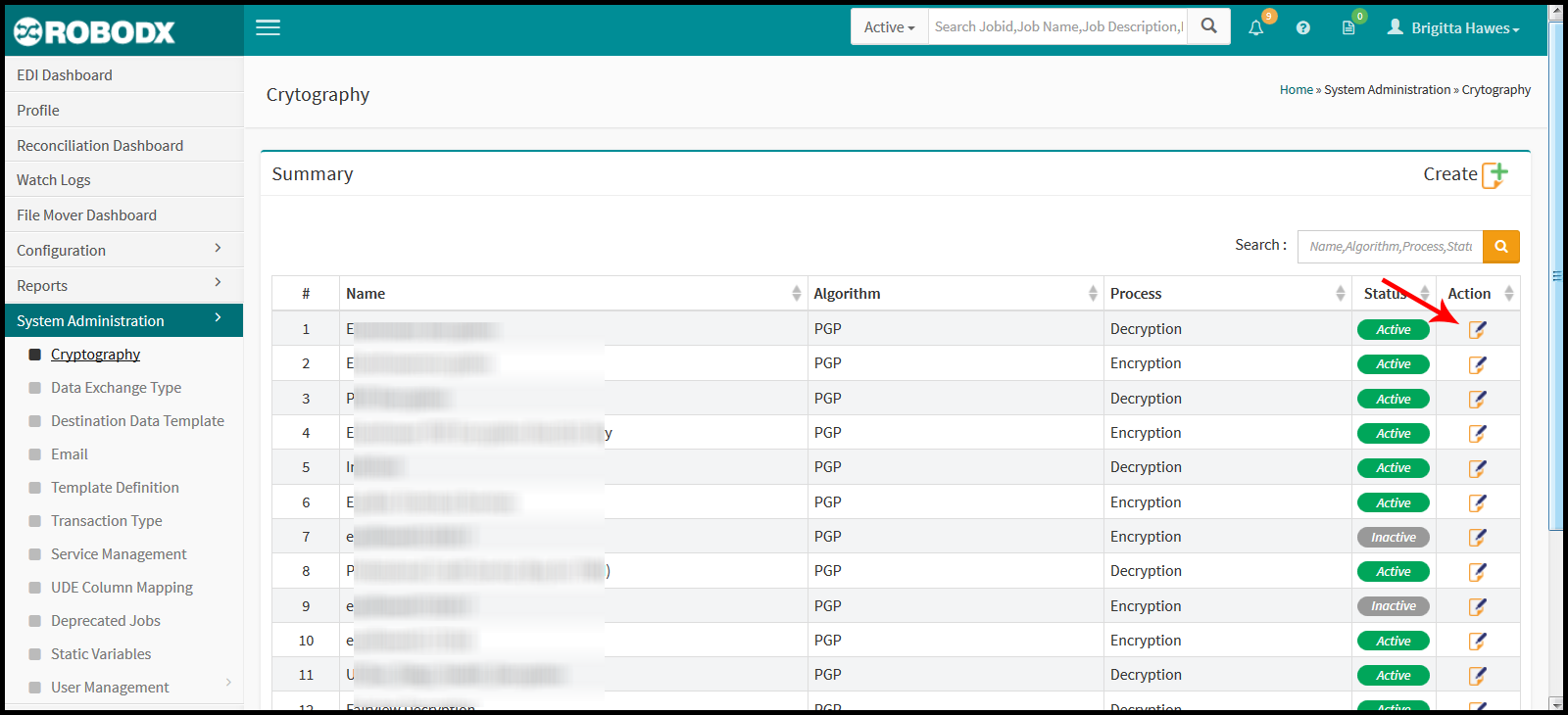
The Cryptography table displays a summary of the following information:
- #: Refers to the table's row number.
- Name: Identifies the name of the configured key.
- Algorithm: Shows which algorithm is being used for a key's cryptography.
- AES: "AES" stands for Advanced Encryption Standard. AES uses one key for both encryption and decryption.
- PGP: "PGP" stands for Pretty Good Privacy. PGP uses two keys. One for encryption, and another for decryption.
- Process: Refers to whether a key is for encryption or decryption.
- Status: Shows the current status of the key (i.e., active or inactive).
- Action: By selecting this option, the user can view and/or edit a key's information details.
Search Table
- Click within the search box located within the upper-right corner of the table.
- Type in your search parameter. Search parameters for this table are:
- Name
- Algorithm
- Process
Create a Key
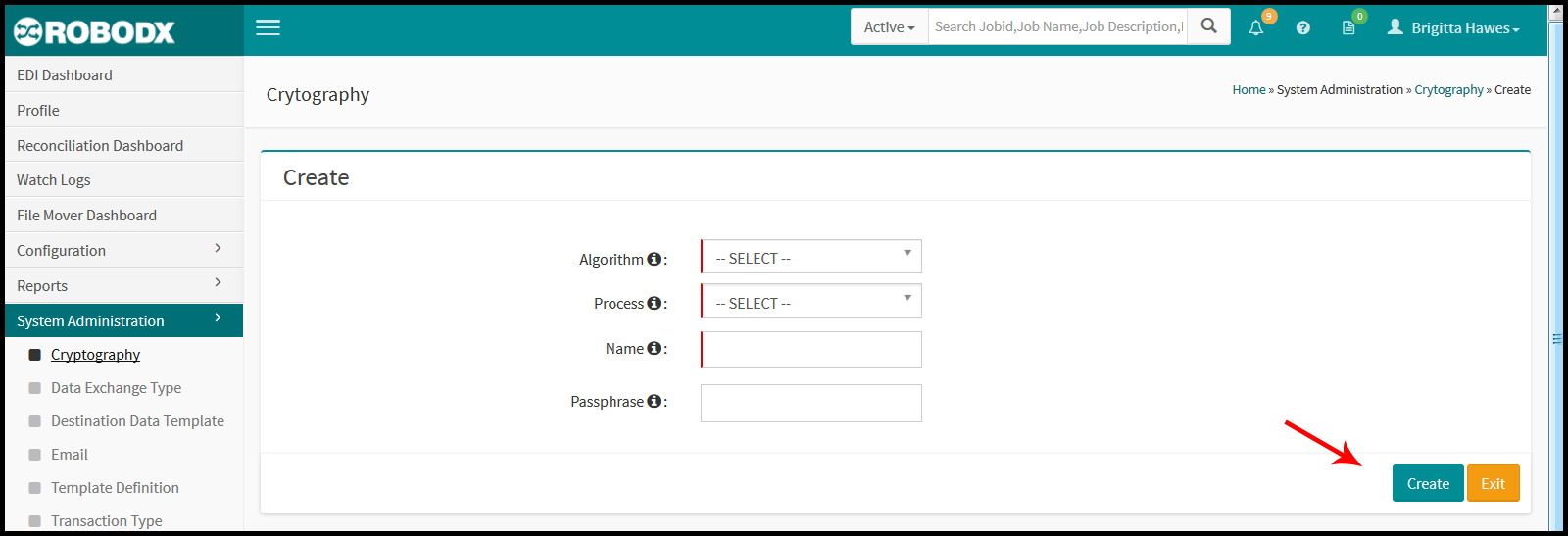
- From the main Cryptography screen, click on the Create icon located in the upper-right corner of the screen. The Cryptography's Create screen appears (Fig. 2).
[Fig. 2]
Field Definitions & Other Functionality
- Algorithm: Click within this field and select your algorithm type. The choices, as described above, are:
- AES: "AES" stands for Advanced Encryption Standard. AES uses one key for both encryption and decryption. AKA "symmetric".
- PGP: "PGP" stands for Pretty Good Privacy. PGP uses two keys. One for encryption, and another for decryption. AKA "asymmetric".
- Process: Select whether this key will be used for encryption or decryption.
- Name: Type in the name of your key.
- Passphrase: -----
- Recipient: -----
- Extension to add at eof (End of File) on transfer: -----
- Button [Create]:
- Button [Exit]: Click this button to exit the Cryptography's Create screen. All changes since your last save will no be saved.
Generating Private & Public Keys
Internally, we only make use of the asymmetric PGP keys, meaning that we will generate both a public key and a private key. To create a new set of pgp keys, you will need to request them from the IT department.
For more information on how PGP keys are generated: Go Here.
View / Edit a Key
- Click on the edit icon located in the Action column of the table for the row that you wish to view / edit. The Crytography's Update screen appears.
- Update your fields as needed.
- When done, click on the Update button located in the bottom, right-hand corner of the screen. Alternatively, you can click on the Exit button to leave the Update page. Any changes you have made since the last save, will not be saved.