System Administration → Template Definition
Template Definition
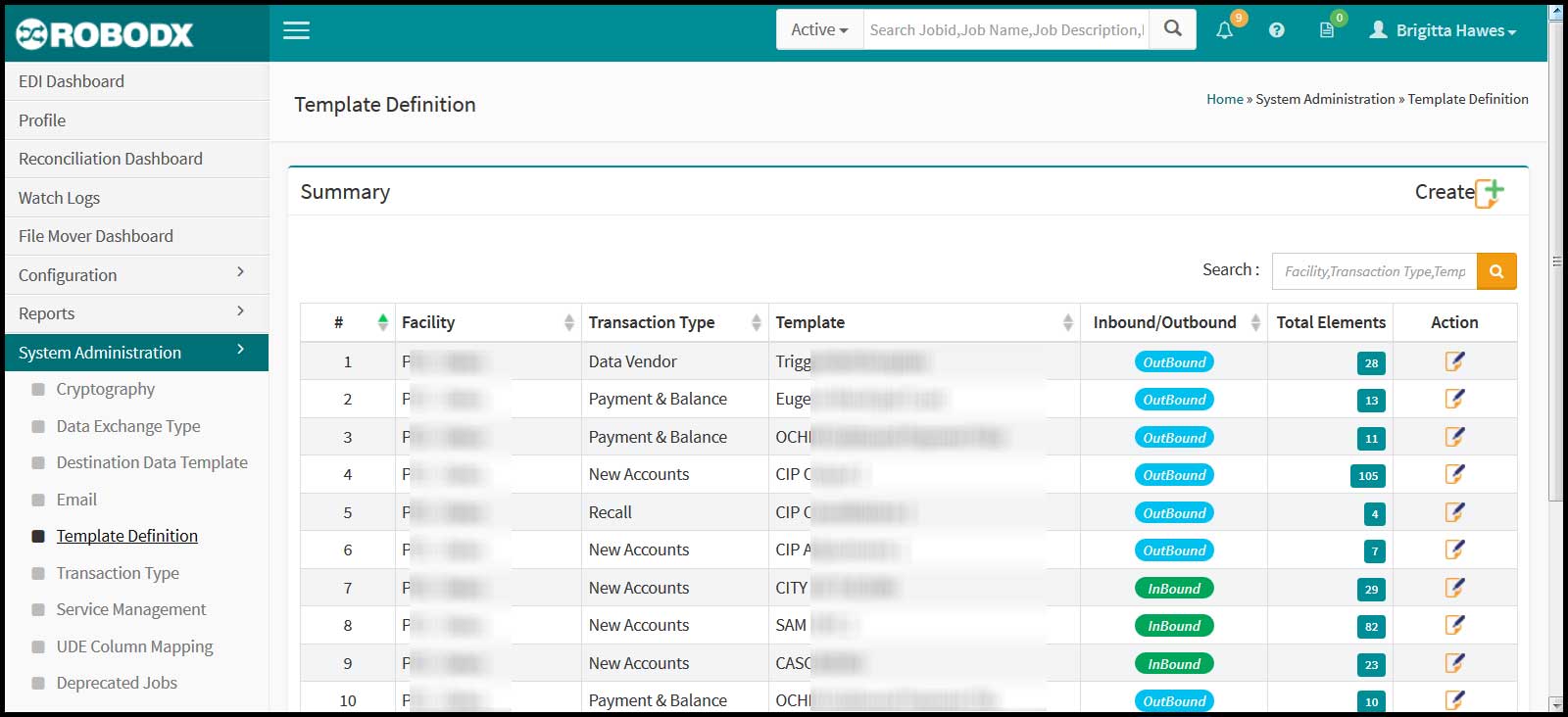
The purpose of the Template Definition screen is to create a template that can be used for one or multiple jobs. From this screen, the user can view an existing template as well as create a new template for inbound and outbound jobs (Fig. 1).
[Fig. 1]
Table Definitions
- Facility: This is the name of your internal agency that the job belongs to. For instance, if Company A has three subsidiaries, the name of the subsidiary that a job originated from, or is being communicated to, is the name you want to choose.
- Transaction Type: Refers to the type of transaction such as: New Accounts, New Loan Request, Cancellations, Payments, Balances, etc.
- Template (i.e., template name): Name of the template.
- Inbound/Outbound: Refers to the type of template (i.e., inbound or outbound).
- Inbound: Communication being transmitted into agency.
- Outbound: Communication being transmitted out of agency.
- Total Elements: Refers to the total number of elements in each template. -----
- **Actions:
- Edit: By clicking on the Edit icon, in the Actions column, the user can modifies an existing template’s settings.
- Edit: By clicking on the Edit icon, in the Actions column, the user can modifies an existing template’s settings.
Search Table
- Click within the search box located within the upper-right corner of the table.
- Type in your search parameter. Search parameters for this table are:
- Facility
- Transaction Type, and
- Template Name
Create a New Template
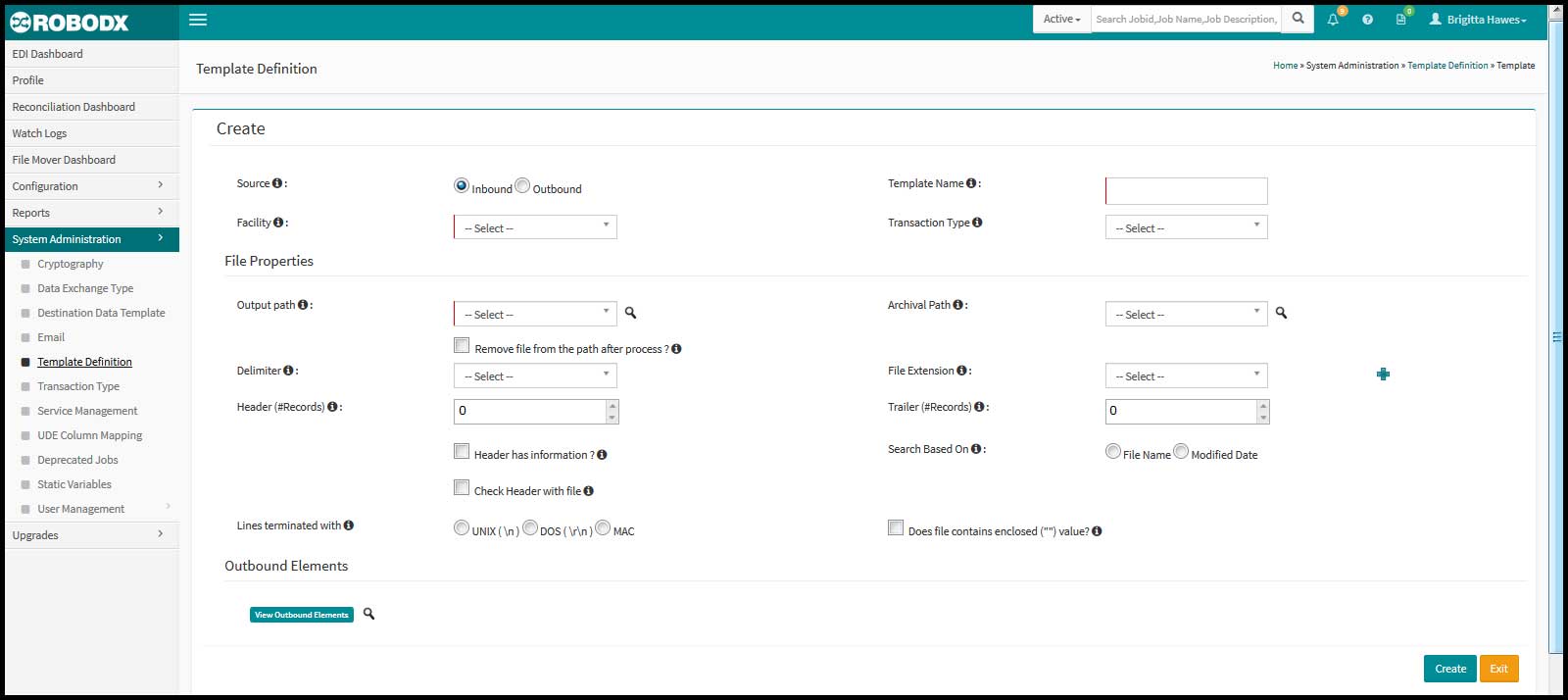
- Click on the Create option located in the upper-right corner of the screen. The Create Template Definition screen appears (Fig. 2).
- Select the SOURCE (i.e., Inbound or Outbound) radio option. We describe each selection's fields below based on whether you chose "Inbound" or "Outbound".
- Source:
- Inbound: Select this option if this is a source template.
- Outbound: Select this option if this is a destination template.
[Fig. 2]
INBOUND ---
- Facility: This is the name of your internal agency that the job belongs to. For instance, if Company A has three subsidiaries, the name of the subsidiary that a job originated from, osr is being communicated to, is the name you want to choose.
- Template Name: Refers to the name of the template.
- Transaction Type: From this field, select the type of transactions this template will contain.
- Output Path: -----
- Archival Path: -----
- Check Box [Remove files from the path after process?]: -----
- Delimiter: Choose a delimiter. A delimiter defines the beginning or the end of a character string and is used to separate items within a database.
- File Extention: Select the file type for the source -----
- Header Records: -----
- Check Box [Header has information?]: -----
- Check Box [Check header with file?]: -----
- Trailer Records: -----
- Search based on?:
- Lines terminated with?: -----
- Check Box [Does file contain enclosed ("") value?]:v
- Button [Outbound Elements]: -----
- Button [Create]: Click on the Create button to save your new template.
- Button [Exit]: Click on the Exit button to leave this screen. Any updates since the last save (in this case "create") will not be saved.
OUTBOUND ---
- Facility: This is the name of your internal agency that the job belongs to. For instance, if Company A has three subsidiaries, the name of the subsidiary that a job originated from, osr is being communicated to, is the name you want to choose.
- Template Name: Refers to the name of the template.
- Transaction Type: From this field, select the type of transactions this template will contain.
- Output Path: -----
- Output Type: -----
- Check Box [Remove files from the path after process?]: -----
- Delimiter: Choose a delimiter. A delimiter defines the beginning or the end of a character string and is used to separate items within a database.
- File Extention: Select the file type for the source -----
- Header Records: -----
- Lines terminated with?: -----
- Trailer Records: -----
- Check Box [Does file contain enclosed ("") value?]: -----
- Button [Outbound Elements]: -----
- Button [Create]: Click on the Create button to save your new template.
- Button [Exit]: Click on the Exit button to leave this screen. Any updates since the last save (in this case "create") will not be saved.
Edit a Template
- Click on the edit icon in the Action column for the template row you wish to edit.
- Make your changes as needed.
- Click on the Update button when done.
- Click on the Exit button to leave the screen. Any changes made since your last update will not be saved.